


Pixelcut AI Photo Editor
4.21.95K Reviews
App Specs
- Version
- 0.9.62
- Updated On
- License
- Free
- Downloads
- 10,000,000+
- Developer
- Pixelcut Inc
- Categories
- Art & Design
- Platform
- Android, iOS
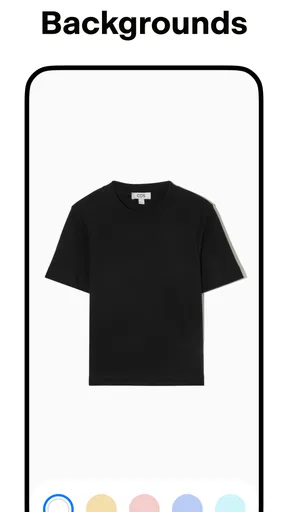
Screenshots



 Analysis by AppCompare
I reach for Pixelcut AI Photo Editor when I want to turn a phone photo into a clean, finished image without opening a full desktop editor. Its appeal is practical: it brings background cleanup, object removal, enhancement, layouts, and collages together in an app from Pixelcut Inc. For quick creative jobs, that combination can save a few steps; for detailed retouching, it is worth knowing where a mobile-first workflow may feel limiting.
What a quick edit feels like
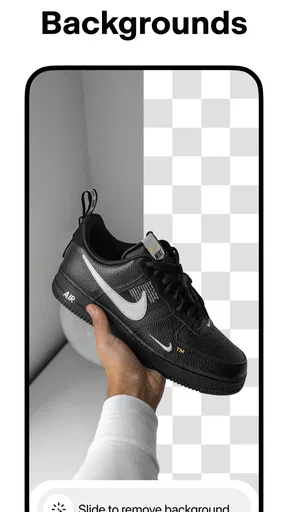
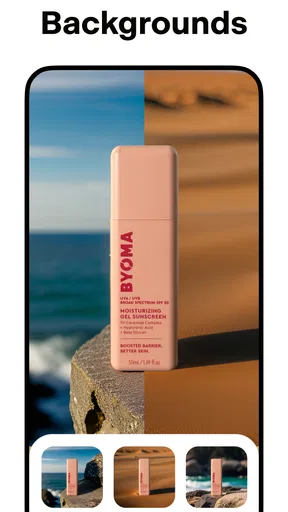
Pixelcut is an art and design app, and its strongest use case is getting from a source photo to something ready to share or use in a small project. Removing a background is especially handy when a product, craft, or person needs to stand out against a simpler setting. I would use it for a marketplace image, a profile graphic, or a quick social post rather than for a carefully layered campaign that needs precise control at every step.
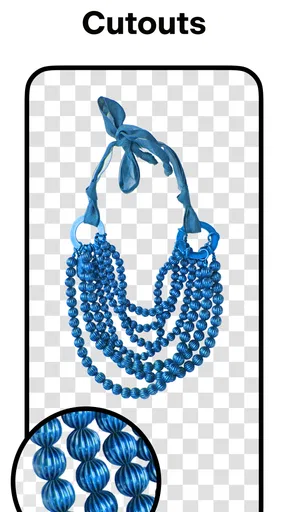
The time-saving promise is most useful when the picture is already reasonably clear. A well-lit object against a distinct background gives an automatic selection an easier job than fine hair, transparent material, or a subject blending into similar colors. I would inspect the edges before exporting, especially around curls, glass, thin straps, or small gaps. The key trade-off is speed versus edge-level precision: automation gets me to a draft quickly, but it does not remove the need to check the result.
Where the tools fit into a real workflow
For a small shop or a person selling occasional items, I would edit one representative image first, settle on a consistent crop and background style, then apply the same visual approach to the rest. That keeps a listing from looking like a collection of unrelated snapshots. If the app’s batch editor is available in the workflow, it can help with repeated changes across several pictures; I would still review each image individually because framing and subject boundaries can vary from shot to shot.
Templates and collage-making serve a different need from cutouts. They are useful when the job is arranging material into a ready-made composition, such as a simple announcement or a set of related pictures. The convenience is that I can spend less time building a layout from scratch. The compromise is that a template can make different creators’ work feel similar, so I would change the photo, spacing, and text choices rather than accept the first design unchanged.
Magic Eraser and photo enhancement also suit quick corrections, but I would treat them as finishing tools, not a promise to rescue every source image. Removing a distracting detail may work well when the surrounding area is simple; a complicated pattern or a large object can leave a visible patch. Likewise, an enhancement can make an image more presentable, but it cannot recover information that was never captured clearly. Keeping the original and comparing the edited version is a sensible habit before using the result publicly.
Speed, stability, and heavier sessions
For straightforward edits, the app is designed to keep common tasks approachable rather than burying them in professional-style controls. In my experience, that kind of focused interface is a better fit for a single quick cutout or layout than for a long session involving many detailed corrections. AI processing can take more work than a basic crop or brightness adjustment, so I would not assume every image or operation will finish at the same pace.
Worth Reading Before You Choose

EA SPORTS FC Mobile 26 Is a Bigger Football Game, but It Takes Time

Flipboard Shows What News Apps Must Do Beyond the Feed

Switching to Android Auto Means Rethinking Your Driving Routine

Google Calendar Makes a Crowded Week Easier to Manage

Ludo King Makes the Most of the Minutes Between Plans

Baby Panda World Brings Quick Play to Modern Phones, but Its Game Library Feels Busy
Heavier use is where I would be more deliberate: working through a large group of photos, switching among several tools, or refining complicated edges can make a mobile workflow feel less comfortable. I would save or export useful stages as I go instead of building an elaborate edit around one uninterrupted session. That is not a claim that the app is unstable; it is a practical way to reduce the cost of having to repeat work in any editor.
Pixelcut has a 4.3 average from around 219,000 ratings, and it has passed 10 million installs. Those figures suggest it has found a substantial audience, but popularity does not tell me whether a particular cutout will suit my image or whether the app will feel equally quick on every phone. I judge reliability by checking the result, confirming that an export is usable, and keeping a copy of the unedited photo until I am satisfied.
Phone fit, cost, and who should choose it
The app is free to download, with in-app purchases ranging from $2.99 to $99.99 per item. I would start with a specific task in mind and see whether the available workflow meets it before paying for anything. If I only need an occasional background removal or collage, the free starting point may be enough; someone who edits regularly should check the current purchase choices against the tools they actually expect to use, rather than assuming every capability is included at no cost.
Pixelcut is rated for Everyone, runs on Android 7.0 or later, and its current version is 0.9.40. That makes the minimum operating-system requirement clear, but it does not guarantee identical speed across devices. If a phone is older or already feels strained by image-heavy apps, I would test one ordinary photo before committing to a batch. Starting with a smaller project also makes it easier to judge whether the interface and processing pace suit the device.
Compared with a basic gallery editor, Pixelcut is more focused on turning a subject into a designed asset: a clean background, a template-based composition, or a collage. Compared with a full desktop editor, it is less suited to intricate selections and fine, repeatable color work. I would choose it for quick visual preparation on a phone and choose a more manual editor when exact masking, detailed layers, or close color matching matters more than convenience.
A few habits that improve the result
Good input photos make the most difference. When I can, I photograph the subject with clear separation from its surroundings and avoid placing similarly colored objects directly behind its outline. For product images, I also leave breathing room around the item; a tight crop can make a cutout harder to position later. These small choices can matter more than repeatedly adjusting an automatic tool after the fact.
For a social post, I would decide where the image will appear before choosing a layout. A square collage, a vertical story-style design, and a product listing do not need the same crop or amount of empty space. I would prepare the subject separately, then build the composition around the destination, rather than forcing one finished image into several formats. That helps avoid clipped details and keeps text from competing with the main subject.
If an edit looks convincing on the phone screen, I still check it at a larger size when the image will be used for a listing or printed material. Zooming in can reveal rough edges or erased areas that are easy to miss in a thumbnail. This is particularly useful after background removal and object cleanup. For informal sharing, a small flaw may not matter; for a product image, the same flaw can make the result look less trustworthy.
Getting Started with Pixelcut
First things first, Pixelcut is available on both Android and iOS, so no matter your device, you’re covered. Downloading the app is a breeze, and once you open it, you’re greeted with a clean, intuitive interface. It’s straightforward enough that even if you’re not tech-savvy, you can navigate through it without feeling overwhelmed.
Once inside, you might be tempted to start editing right away, and honestly, why not? The app offers a quick tutorial that’s actually fun and not too long-winded. It gives you a taste of what you can do without making you feel like you’re in a lecture. By the end of it, you’ll be itching to try out its features on your own photos.
Features That Stand Out
What makes Pixelcut stand out in the crowded world of photo editors? It’s all about the AI-powered tools. These tools take the guesswork out of editing. Let me share a few highlights:
- Background Remover: Ever wished you could magically erase that cluttered background in your selfies? Pixelcut does this with a tap. The AI skillfully detects and removes backgrounds, leaving you with a clean subject image.
- Batch Editor: Got a bunch of photos to edit? No problem. The batch editing tool allows you to apply changes to multiple images simultaneously, which is a huge time-saver.
- Templates Galore: Whether you’re crafting an Instagram post or a business card, the app offers a variety of templates. They’re stylish and customizable, giving your images a polished look.
Ease of Use
One thing I appreciate about Pixelcut is its focus on making photo editing accessible to everyone. The app’s design is sleek, and the icons are self-explanatory. You don’t need to dig through endless menus to find what you need. Everything is just a few taps away.
The AI does a lot of the heavy lifting, but you’re not just an onlooker. You have the freedom to tweak the settings to your liking. Want to adjust the brightness or contrast? Go ahead. The app allows for both automated and manual adjustments, giving you the best of both worlds.
Performance and Reliability
In terms of performance, Pixelcut runs smoothly without any noticeable lags or crashes, even when editing high-resolution images. This is crucial because there's nothing more frustrating than your app freezing midway through an edit.
The app doesn’t drain your battery like some other intensive apps do, and it doesn’t hog your phone’s resources. It’s optimized to work efficiently, which is a definite plus in my book.
Final Thoughts
So, should you download Pixelcut AI Photo Editor? If you’re looking for an app that combines ease of use with powerful editing capabilities, then absolutely. It’s a fantastic tool for anyone, from casual users wanting a quick touch-up to influencers needing to create eye-catching content.
The blend of AI-driven features and user-friendly design makes it a standout choice in the app store. It’s one of those apps that you’ll find yourself returning to time and again, simply because it makes photo editing straightforward and fun.
So, give it a go. It might just become your go-to app for all things photo editing. And who knows, you might even start to love editing your photos as much as taking them!
Pros
- User-friendly interface simplifies editing.
- AI-powered tools enhance photo quality.
- Wide range of filters and effects.
- Supports high-resolution exports.
- Integrates seamlessly with social media.
Cons
- Limited free version features availability.
- Occasional app crashes reported.
- Subscription model may deter users.
- High learning curve for beginners.
- Lacks advanced editing tools.
FAQs for Pixelcut AI Photo Editor
What features does Pixelcut AI Photo Editor offer?
Pixelcut AI Photo Editor provides a suite of powerful tools for enhancing and editing photos. It includes AI-driven features like background removal, image restoration, and color correction. Users can also access a variety of filters, overlays, and text options to customize their images. Additionally, batch editing and export options make it ideal for both casual and professional use.
Is Pixelcut AI Photo Editor user-friendly for beginners?
Yes, Pixelcut AI Photo Editor is designed with an intuitive interface that caters to both beginners and experienced users. The AI tools simplify complex editing tasks, while tutorials and prompts guide new users through the process. This ensures that anyone can achieve professional-looking results without needing extensive prior knowledge.
Can Pixelcut AI Photo Editor be used on both Android and iOS devices?
Yes, Pixelcut AI Photo Editor is available for download on both Android and iOS platforms. It ensures a seamless experience across different devices with a similar interface and feature set. Users can easily switch between devices without losing progress, thanks to cloud synchronization options.
Are there any subscription fees or in-app purchases in Pixelcut AI Photo Editor?
Pixelcut AI Photo Editor offers a free version with basic features, but to unlock the full suite of tools, a subscription is required. The subscription provides access to premium features, regular updates, and customer support. Users should consider their editing needs to decide if the subscription is worthwhile for them.
How does Pixelcut AI Photo Editor handle privacy and data security?
Pixelcut AI Photo Editor takes privacy and data security seriously. It employs encryption protocols to protect user data and ensures that personal information is not shared with third parties. Users are encouraged to review the app’s privacy policy to understand how their data is collected, used, and stored.


